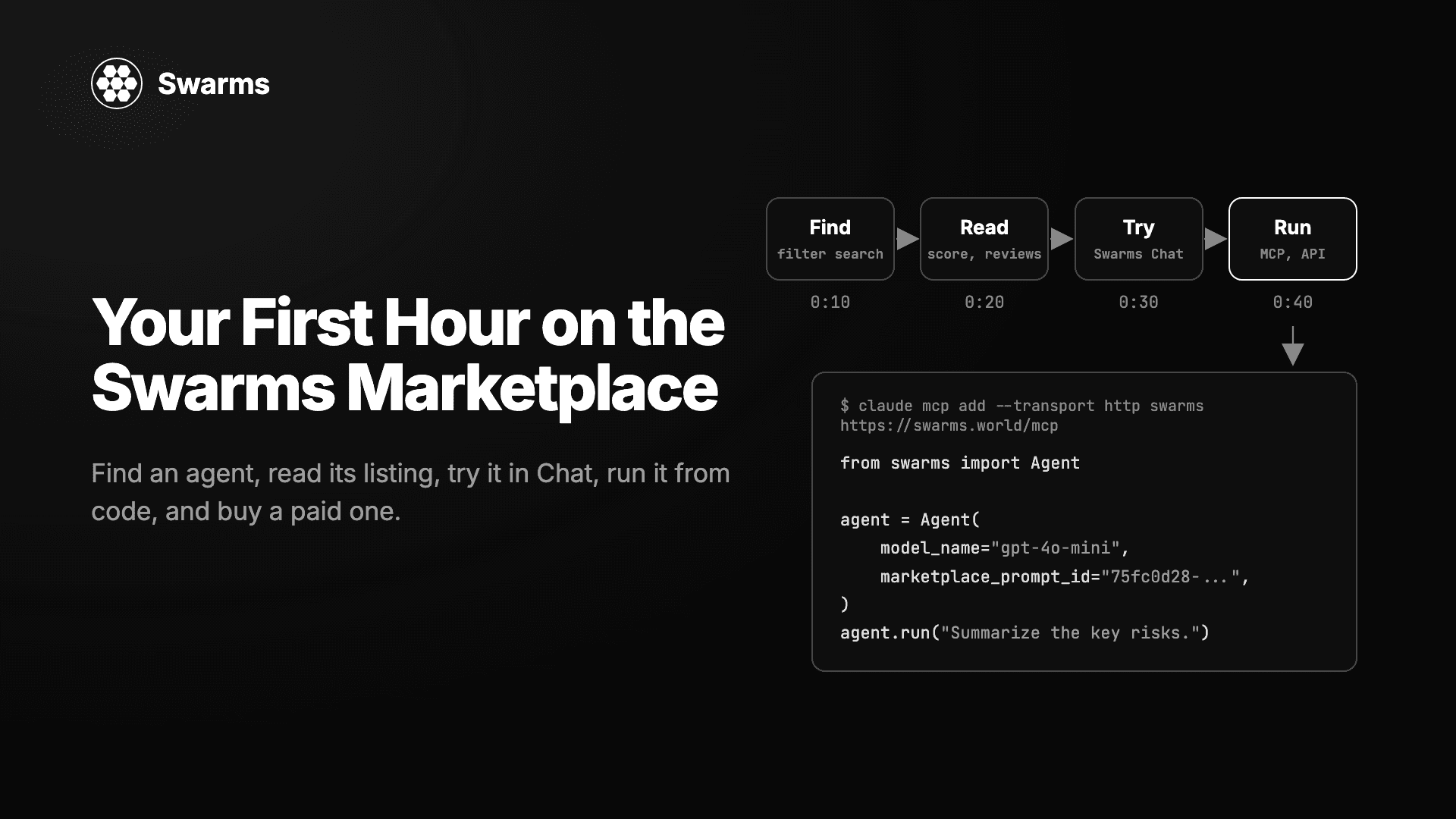
Choosing the right model, prompt, and configuration for an agent is rarely a one-shot decision. Teams routinely need to know whether GPT-5.4 or Claude Opus 4.5 handles a given task better, whether a small prompt change actually improves output quality, or whether a cheaper model is "good enough" for a specific workload. Answering those questions has traditionally meant opening several browser tabs, running the same prompt manually against each option, and eyeballing the results, an approach that does not scale and produces no record of what was actually tested.
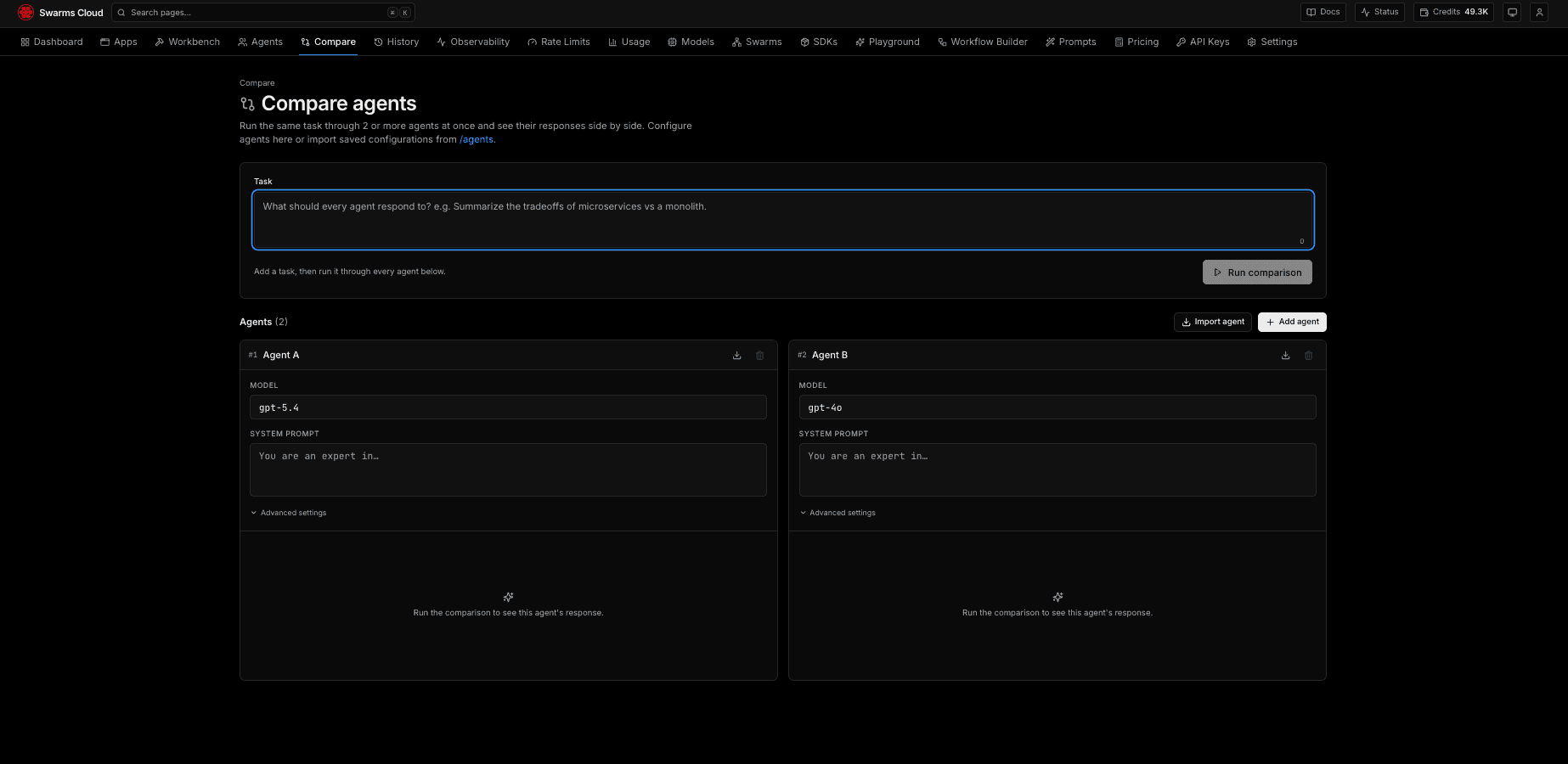
The new Compare tool on Swarms Cloud, available at cloud.swarms.world/compare, is built to close that gap. It lets a user configure several independent agents, run one shared task through all of them at the same time, and see the outputs, cost, and token usage for each agent laid out side by side.
What Compare Actually Does
Compare is not a static spec sheet of model pricing or benchmark scores. It is a live agent-versus-agent execution comparator. Each comparison is built from individual agent columns, and each column is a complete, independently configurable agent: its own model, its own system prompt, its own role, and its own generation settings such as temperature, max tokens, and max loops.
A single task box sits above the columns. Whatever is entered there is the shared prompt sent to every configured agent when the comparison runs, so the variable under test is the agents, not the task. This is the core idea behind the tool: hold the task constant, vary everything else, and observe what changes.
Users can run anywhere from two to six agents in a single comparison. Two is the minimum because a comparison needs at least two things to compare, and six is the ceiling to keep the layout readable and the run itself fast. Columns can be added or removed freely within that range, and each one can be configured from scratch or populated instantly by importing a previously saved agent configuration through a searchable picker, so teams do not have to rebuild agents they have already tuned elsewhere on the platform.
Running a Comparison
Once at least two agents are configured and a task is entered, clicking "Run comparison" dispatches all agents concurrently rather than one after another. Each agent call is handled independently, so if one configuration errors out, whether from a malformed prompt or a model-specific issue, the rest of the run continues unaffected and reports its own results normally. This matters in practice: a comparison across six models is only useful if a single failure does not force the whole test to be restarted.
Every run is a real call to the Swarms Agent Completions API, the same production endpoint that powers single-agent execution elsewhere on the platform. There is no simulated or cached data behind Compare. What you see is what that exact configuration would return if deployed as-is.
What Gets Shown
As each agent finishes, its column populates with three numbers pulled directly from the API response: elapsed duration, total tokens consumed, and total cost in dollars. Below those stats sits the agent's raw output text, with a one-click copy button for pulling any individual response out for further review.
Deliberately, Compare does not declare a winner. There is no highlighting of the "best" cost, no badge on the fastest response, and no aggregate score. Each column reports its own numbers, and the judgment of which configuration is actually better for the task at hand is left to the person running the comparison. For an enterprise evaluation process, that is the right default: cost, latency, and output quality trade off against each other differently depending on the use case, and a tool that silently picks a winner would be making assumptions about priorities it cannot know.
Why This Matters for Production Decisions
Model selection decisions in production systems are usually made once and then live with a team for months. Getting that decision wrong, choosing a model that is more expensive than necessary, or a prompt that produces inconsistent output, carries real ongoing cost. Compare turns that decision from a matter of intuition into something that can be tested directly, with real numbers, before any code ships.
A few concrete ways teams are already using it:
- Model selection. Configure the same system prompt and role against several candidate models to see actual cost and latency differences on a representative task, rather than relying on published benchmarks that may not reflect a specific workload.
- Prompt iteration. Run two versions of the same agent, differing only in system prompt, against an identical task to evaluate whether a prompt change actually improves output rather than just changing it.
- Cost-tier evaluation. Test whether a lower-cost model produces acceptably similar output to a premium one for a given task, informing whether the more expensive option is worth the incremental spend at scale.
- Role and parameter tuning. Compare how temperature, max loops, or role assignment (worker, manager, executor, analyst) shift an agent's behavior on the same underlying task.
Because every comparison pulls from the same saved agent configurations used elsewhere on Swarms Cloud, teams can also treat Compare as a pre-flight check: validate a configuration here before wiring it into a production workflow or the Workflow Builder, catching issues while iteration is still cheap.
Getting Started
Compare is available now to every Swarms Cloud user. Configure two or more agents, enter a task, and run the comparison directly at cloud.swarms.world/compare. Agents built or saved elsewhere on the platform, including through cloud.swarms.world/agents, can be imported into a comparison in a single click, so there is no need to reconstruct configurations from scratch.
As with every execution feature on Swarms Cloud, usage from Compare runs is fully visible in the token usage dashboard, so the cost of evaluation itself stays transparent alongside the cost of production traffic.
Links and Resources
Have questions or feedback? Join our Discord community or check out the documentation.