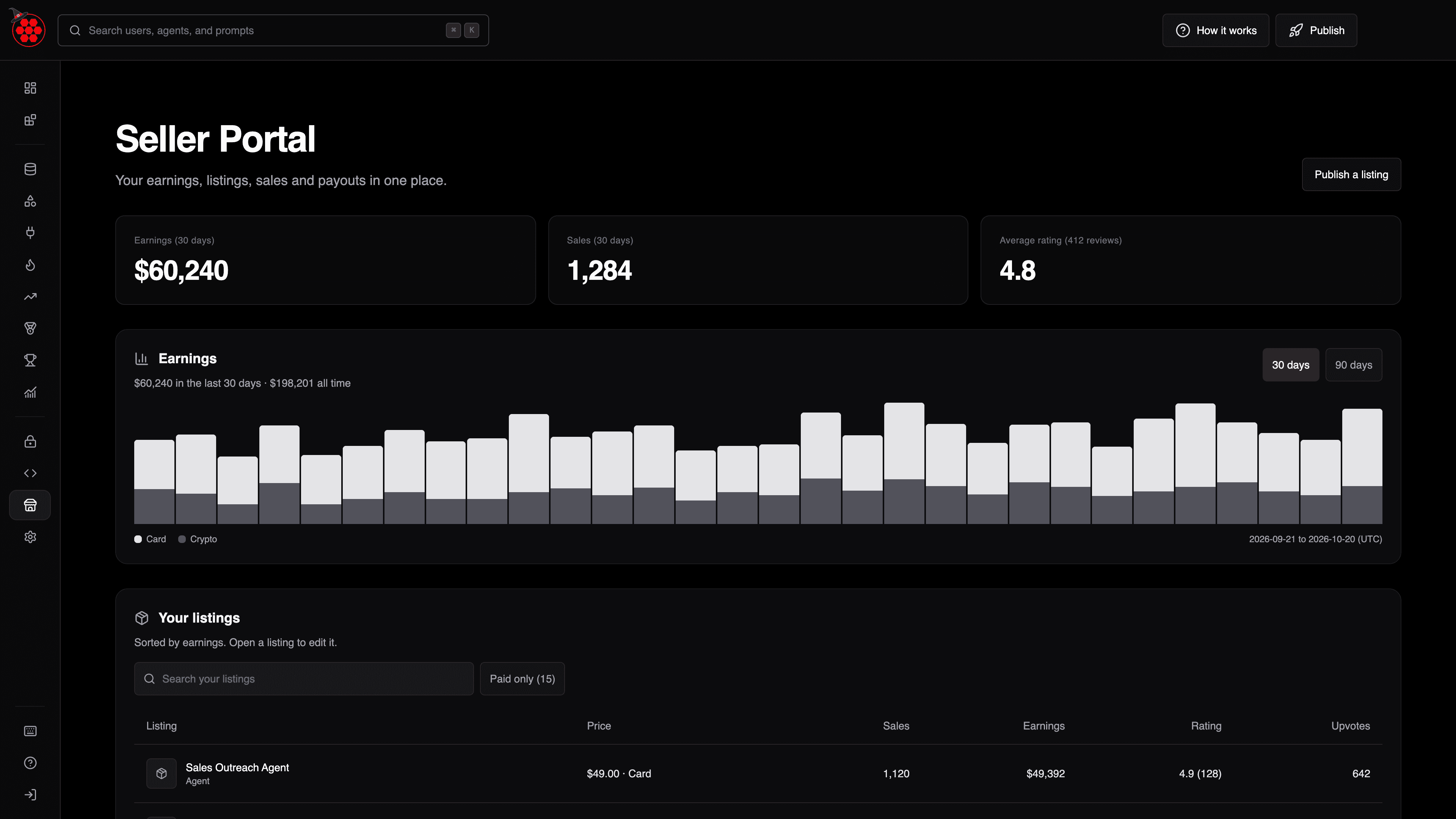
Today we are releasing the Seller Portal, a new home for everyone who sells on the Swarms Marketplace. It answers the questions sellers ask most often, on a single page: how much have I earned, which listings are selling, who bought them, what are people saying, and is anything stopping me from getting paid?
Until now, those answers were spread across your account settings, each product page, and your Stripe dashboard. The Seller Portal brings them together, and a new Sales page gives you a complete, searchable record of every transaction that you can export to a spreadsheet.
What Is on the Page
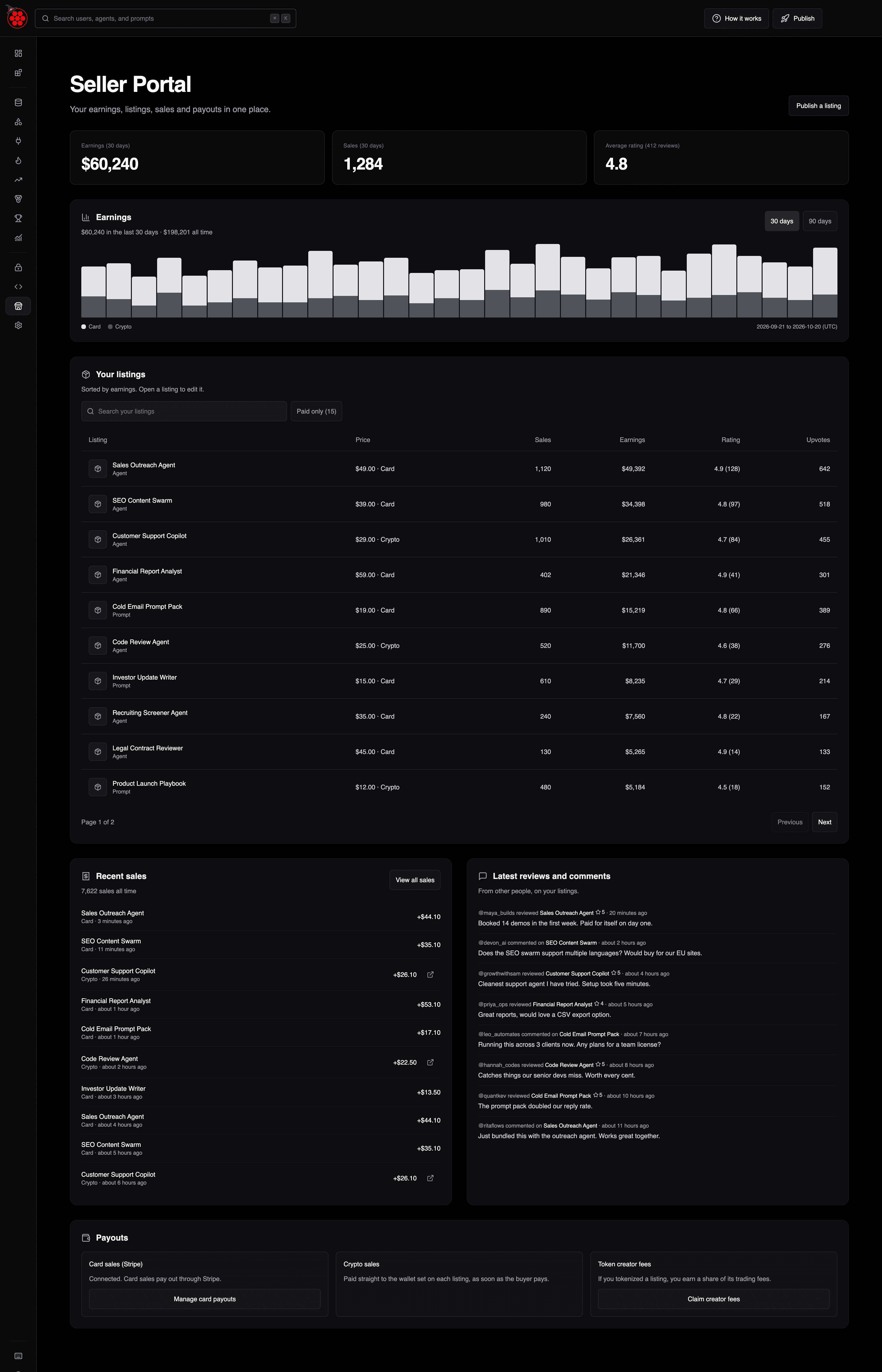
The Seller Portal is built from a few sections, top to bottom.
| Section | What it shows |
|---|
| Headline metrics | Earnings and sales over the last 30 days, plus your average rating |
| Finish setting up | Anything that would stop a buyer's payment from reaching you |
| Earnings | A day-by-day chart of card and crypto earnings over 30 or 90 days |
| Your listings | Every agent, prompt, tool, and bundle you have published, with sales and earnings |
| Recent sales | Your 10 latest sales, with a link to the full history |
| Latest reviews and comments | What other people are saying on your listings |
| Payouts | Where your card, crypto, and token earnings go, and where to manage them |
Headline metrics
Three cards sit at the top of the page:
- Earnings (30 days): what you actually received over the last 30 days, after the platform fee.
- Sales (30 days): the number of completed sales in the same window.
- Average rating: your average review score across every listing, with the number of reviews it is based on.
Earnings are always shown net of fees. Swarms takes a flat 10% of every completed sale, whether the buyer pays by card or in crypto, and you keep 90% (full fee breakdown here). The number on the card is the 90%, so it matches what lands in your Stripe balance or wallet.
Finish setting up
This banner only appears when something would stop you from getting paid. It lists exactly what needs doing, with a link to fix each item:
- Publish your first listing, if you have not published anything yet.
- Connect Stripe to get paid for card sales, if you have a listing priced for card payments but no active Stripe account.
- Add a payout wallet, if any crypto listing has no wallet set to receive the payment. Those listings are also marked in your listings table so you can find them quickly.
When everything is in order, the banner disappears.
Earnings chart
The earnings chart shows what you earned each day, as stacked bars that split card sales from crypto sales. Switch between the last 30 and 90 days to see whether a launch, a price change, or a mention somewhere moved your numbers.
Your listings
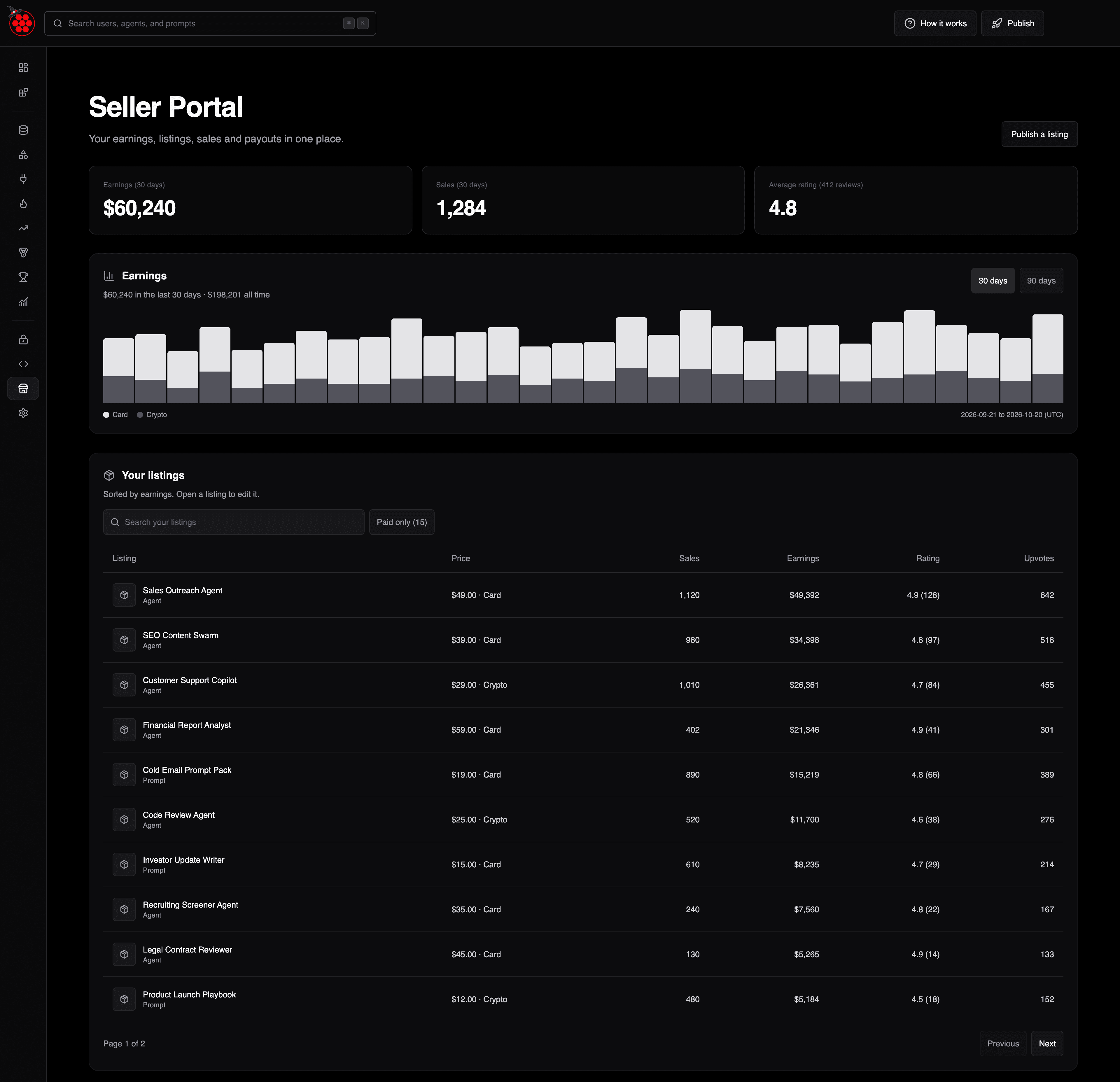
Every product you have published appears in one table: thumbnail, name, type, price, sales, earnings, rating, and upvotes. Listings are sorted by earnings, so your best performers are always at the top, 10 to a page.
- Search by name to find a specific listing.
- Paid only narrows the table to your paid listings in one click, and shows how many you have.
- A No payout wallet warning appears next to any crypto listing that needs a wallet before it can be paid.
Click any listing to open its product page, where you can edit it as before.
Recent sales
Your 10 most recent sales sit just below your listings, with a View all sales button that opens the full Sales page.
Latest reviews and comments
Reviews and comments that other people have left on your listings are collected in one feed. You no longer need to open each product page to see whether someone has asked a question or left a rating.
Payouts
The Payouts section explains where each kind of income goes, and links to the place that manages it:
- Card sales (Stripe): whether your Stripe account is connected, still being set up, or not connected yet. Manage card payouts opens the Seller tab in your account settings.
- Crypto sales: paid straight to the wallet set on each listing, as soon as the buyer pays. If any listing is missing a wallet, this section tells you how many.
- Token creator fees: if you tokenized a listing, you earn a share of every trade on its token. Claim creator fees takes you to where you can collect them.
The Sales Page: Every Transaction, Exportable
The new Sales page is the complete record of everything you have sold, newest first. Each row shows:
| Column | Meaning |
|---|
| Date | When the sale happened |
| Product | The listing that was bought |
| Buyer | The buyer's public @username |
| Method | Card or crypto |
| Gross | What the buyer paid |
| Fee | The 10% platform fee |
| Net | What you received |
| Status | Whether the payment completed |
Crypto sales also include a link to the transaction on Solscan, so you can verify any payment on-chain yourself.
The header shows your all-time totals: how many sales you have completed and how much you have earned net of fees. A single search box filters by product, @buyer, payment method, status, or transaction signature, and results are paged 25 at a time.
Export to CSV
Export CSV downloads the rows you are looking at, including any search filter you have applied, as a spreadsheet. A few details make the file pleasant to work with:
- It opens cleanly in Excel, Google Sheets, and Numbers, including names with accents or non-Latin characters.
- Every amount is split into gross, fee, and net, which makes bookkeeping and tax reporting much simpler.
- Product names are written by sellers, so any cell that a spreadsheet might treat as a formula is made safe before export.
How to Open It
- Sign in to swarms.world.
- Click Seller Portal in the sidebar, just below Developers, or go straight to swarms.world/platform/seller.
- Click View all sales for the full Sales page, or Publish a listing in the top corner to add a new product.
If you have not sold anything yet, the page still works. It walks you through what to set up and shows each section filling in as your first sales arrive.
Privacy and Accuracy
- You only ever see your own data. Every number and row on both pages comes from your own listings and your own sales.
- Buyers appear by their public @username only. Sellers never see a buyer's email address or any other private detail.
- Totals count completed sales. The Sales table lists every transaction, including any that did not complete, so you have the full picture. The headline counts and earnings only include payments that actually went through.
- Large catalogs are fully counted. Sellers with thousands of listings or sales see complete totals, not a sample.
Getting the Most Out of It
- Clear the banner first. If Finish setting up is showing, a buyer could be blocked from paying you right now. It takes a minute to fix.
- Watch the 90-day chart after every change. New pricing, a fresh image, or a tokenized launch will show up as a change in the bars within days.
- Answer comments from one place. The reviews feed is the fastest way to spot a buyer question before it turns into a missed sale.
- Export monthly. A CSV per month gives you a clean record for your own bookkeeping.
New to selling? Start with our step-by-step guide to selling agents and prompts, then use the Seller Portal to track how your listings do.
Frequently Asked Questions
Who can use the Seller Portal?
Anyone with a Swarms account. Sign in and open it from the sidebar. If you have not published anything yet, it shows you how to get started.
Are the earnings before or after fees?
After. Earnings are what you keep, which is 90% of each completed sale.
Does it include crypto sales?
Yes. Card and crypto sales are both counted in your totals, shown in the chart, and listed on the Sales page.
Can buyers see my sales?
No. The Seller Portal and Sales page are private to you.
Can I see who bought my listing?
You can see the buyer's public @username, so you know who your customers are. You never see their email address.
Can I edit a listing from the portal?
Click the listing to open its product page, then edit it there as usual.
Where do token trading fees appear?
Creator fees from tokenized listings are claimed separately, from the Creator Fees tab in your account. The Payouts section links straight to it.