Until this release, publishing an MCP server on the Swarms Marketplace meant filling in a single URL field, and nothing ever connected to that URL. The listing couldn't say which tools the server had, whether it needed a key, or how to add it to your MCP client. You found out by trying it.
That is fixed. The marketplace now connects to every MCP server you publish and reads what it exposes. It turns that into a listing people can use straight away: the server URL, how to authenticate, the full list of tools, and copy-paste configs for Claude, Cursor, VS Code, and other MCP clients.
Here is what's new:
- Inspect before you publish. Paste your server URL on the launch page and click Inspect. The marketplace connects to the server, reads its tools, and fills in the listing for you.
- Declared authentication. Tell clients whether your server needs no auth, an API key, or OAuth sign-in, which header to send, and where to get a key.
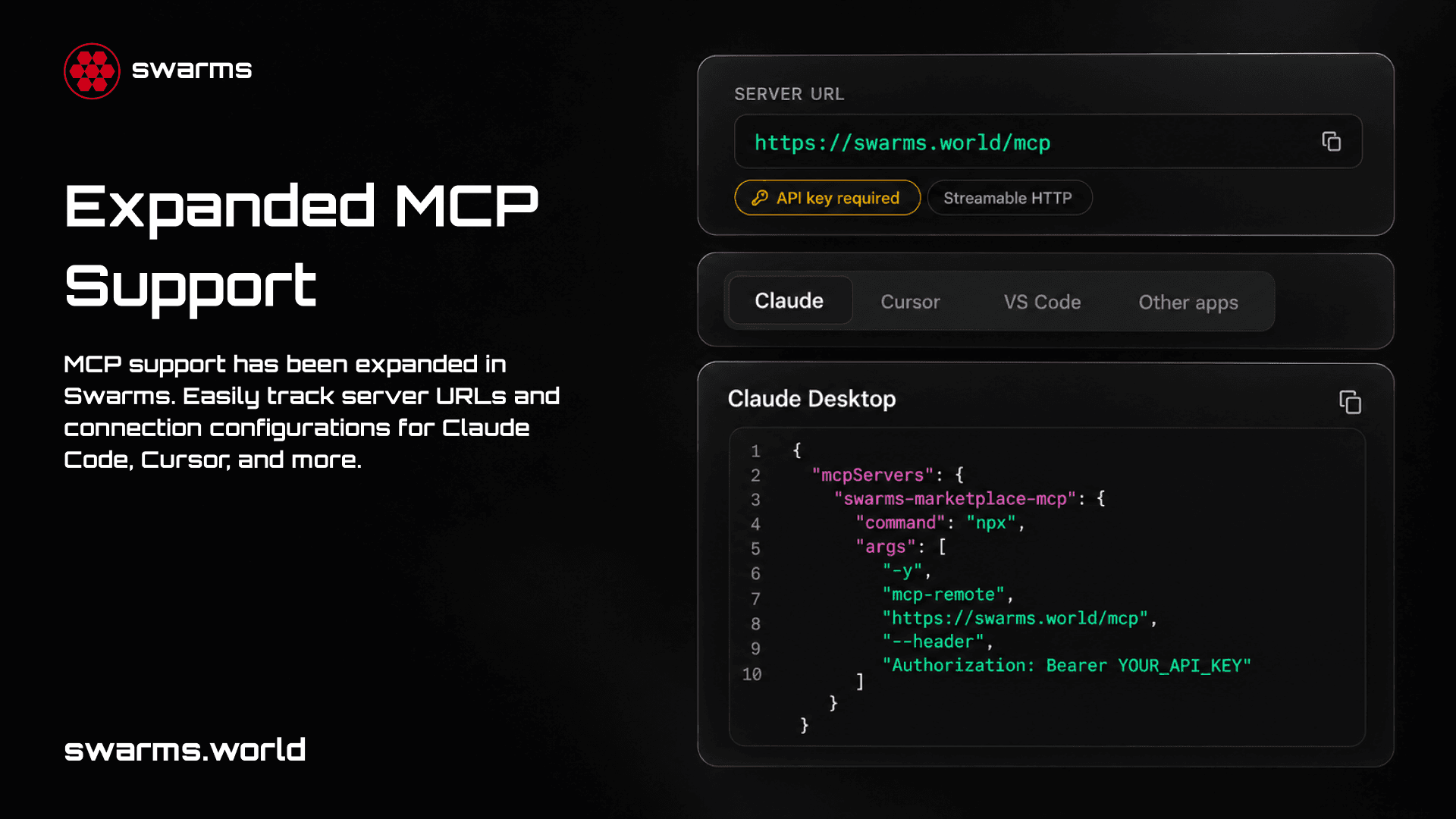
- A "Connect to this MCP server" section on MCP listings. It shows the URL, auth and transport badges, every tool with its parameters, and configs for each client.
- One-click installs into Cursor and VS Code for servers that don't need a key.
- Automatic tagging. Any agent with an MCP server URL is tagged MCP and appears on the MCP servers page.
- A curated featured row on the MCP servers page, so the top slots no longer change with every new upload.
Inspect: Paste a URL, See What Your Server Exposes
The MCP URL tab on the launch page now has an Inspect button. Click it and the marketplace opens a real MCP session with your server, using the same handshake Claude or Cursor would.
- Both transports. It tries Streamable HTTP first and falls back to the older SSE transport. If your server refuses the protocol version it is offered, the inspector retries once with the version your server advertises.
- Everything the server exposes. It records the server's name, version, and instructions, and every tool with its input schema and its read-only and destructive hints. It also counts the server's resources and prompts.
- Auth detection. A
401 response means the server wants credentials. If the server also publishes OAuth protected-resource metadata, it uses OAuth sign-in; otherwise it needs an API key.
The result appears right under the URL field:
- Connected: the server's name and version, its transport, and its tool count, followed by the tool names.
- Needs credentials: for an OAuth server, nothing more is needed, because MCP clients handle the sign-in themselves. For an API-key server, add a test key (see below) and inspect again to read its tools.
- Couldn't connect: the reason. When your server answers with its own error, you see that message, so you can tell why it refused.
A successful inspection also fills in part of the form. If the name or description is empty, it is filled from the server's name and instructions, or from a short summary of its tools. The MCP category is added for you.
What your server URL needs
The marketplace is connecting to a URL that someone typed, so inspection is locked down:
- https only.
- A public address. Private, loopback, link-local, CGNAT, and cloud-metadata addresses are refused over both IPv4 and IPv6. Every redirect is checked the same way.
- 20 seconds for the whole check. That is long enough for a server on a free hosting tier to wake from a cold start.
- 1 MB maximum response size.
- 30 inspections per hour for each signed-in user. A preview inspection on the launch form stores nothing.
If you're still developing locally, deploy the server or expose it through an https tunnel before you inspect it.
Authentication: Tell Clients How to Connect
Once a URL is in the field, an Authentication picker appears with three options. Inspection preselects the option it detected, and you can change it.
| Option | Use it when | What people connecting get |
|---|
| No auth | Your server is public | Plain configs plus one-click install links |
| API key | Your server expects a key in a request header | Configs that carry the header with a YOUR_API_KEY placeholder |
| OAuth sign-in | Your server uses MCP's OAuth flow | Plain configs; the client opens a browser to sign in the first time it connects |
For an API-key server, you can also set:
- Header name. The default is
Authorization.
- Send the key as "Bearer
<key>". This is on by default. Turn it off if your server expects the raw key.
- Where users get a key (optional). This link appears on your listing as Get an API key, so visitors know where to sign up.
- Test key (optional, never saved). The marketplace uses it once to read your tools when you inspect and when you publish, and it is never stored. Without one, an API-key listing still publishes and still shows how to connect, but it can't list your tools.
The New "Connect to This MCP Server" Section
Every agent published as an MCP server (one with an MCP URL and no code or x402 URL) now has a Connect to this MCP server section in its Overview tab. You can see it on the Swarms Marketplace MCP listing. The section contains:
- The server URL, with a copy button.
- Badges for auth (API key required, OAuth sign-in, or No auth required), transport (Streamable HTTP or SSE), and tool count, plus the publisher's Get an API key link if one is set.
- Client tabs: Claude, Cursor, VS Code, and Other apps. Each tab has configs built for that server, with the right transport and, when a key is needed, the right header.
- Add to Cursor and Add to VS Code buttons for servers that need no key. They are hidden on API-key servers, because a one-click install would save a config that fails until you add your key by hand.
- The tools list. Every tool is shown with its parameters, and required parameters are marked. Read-only and destructive badges show which tools only read data and which can change it, before you hand them to an agent.
Here is what the section generates for the Swarms Marketplace MCP, a server that needs an API key.
Claude Code (add --scope user to use the server in every project):
claude mcp add --transport http swarms-marketplace-mcp https://swarms.world/mcp --header "Authorization: Bearer YOUR_API_KEY"
Cursor (~/.cursor/mcp.json, or .cursor/mcp.json in a project root to use it in that project only):
{
  "mcpServers": {
    "swarms-marketplace-mcp": {
      "url": "https://swarms.world/mcp",
      "headers": {
        "Authorization": "Bearer YOUR_API_KEY"
      }
    }
  }
}
VS Code (.vscode/mcp.json). The key is not written into the file. VS Code asks for it the first time the server starts and stores it securely:
{
  "inputs": [
    {
      "type": "promptString",
      "id": "api-key",
      "description": "Swarms Marketplace MCP API key",
      "password": true
    }
  ],
  "servers": {
    "swarms-marketplace-mcp": {
      "type": "http",
      "url": "https://swarms.world/mcp",
      "headers": {
        "Authorization": "Bearer ${input:api-key}"
      }
    }
  }
}
Claude Desktop (claude_desktop_config.json, opened from Settings → Developer → Edit Config) connects through the mcp-remote bridge:
{
  "mcpServers": {
    "swarms-marketplace-mcp": {
      "command": "npx",
      "args": [
        "-y",
        "mcp-remote",
        "https://swarms.world/mcp",
        "--header",
        "Authorization: Bearer YOUR_API_KEY"
      ]
    }
  }
}
The Other apps tab has a Windsurf config, plus a fallback for any client that can only run local (stdio) servers:
npx -y mcp-remote https://swarms.world/mcp --header "Authorization: Bearer YOUR_API_KEY"
On a server that needs no key, every config drops the header. The Claude tab then also points you to Claude Desktop's Settings → Connectors → Add custom connector, where you just paste the URL. On an OAuth server, the configs carry no key either. Your client opens a browser to sign you in the first time it connects, and in Claude Code you run /mcp to sign in.
Listings stay current
What a listing shows isn't a snapshot frozen at publish time. When someone opens an MCP listing, the marketplace re-inspects the server if its last check is more than a day old, or more than 15 minutes old if the last check failed. Listings published before this update fill in the same way the first time they're viewed. If one of these refreshes, which never carry a key, runs into an auth wall, the listing keeps the tools that were read with your test key at publish.
Finding MCP Servers: swarms.world/mcp-servers
The MCP catalog now lives at swarms.world/mcp-servers. The old address, swarms.world/mcp, is now the marketplace's own MCP endpoint, which you can connect any MCP client to. See The Swarms Marketplace MCP Is Live for that.
- Every MCP listing is in the catalog: every agent, prompt, and tool tagged MCP. An agent with an MCP server URL is tagged automatically when it is published from the launch form or the API, or saved in the edit dialog, and every existing one has been tagged.
- Code-based MCP servers count too. Servers you run locally are usually published as tools or prompts with the MCP category, and they stay in the catalog next to hosted servers.
- Featured MCP tools is now a curated row instead of the four newest uploads:
- Swarms Marketplace MCP: search, read, publish, and manage marketplace listings from any MCP client
- Firecrawl MCP Agent: web search, crawling, and scraping
- DeepWiki MCP Agent: research GitHub repositories and their documentation
- Exa MCP Search Agent: real-time web search built for AI agents
- Open in Registry now carries MCP prompts and tools into the registry view, not just agents.
How to Publish Your MCP Server
Publish from the launch page
- Deploy your server at a public https URL that speaks Streamable HTTP or SSE.
- Sign in and open swarms.world/launch.
- Under What would you like to publish?, choose Agent.
- In Agent Implementation, open the MCP URL tab and paste your server URL, for example
https://api.example.com/mcp.
- Click Inspect and check the result: the server name, the transport, and the tools you expect.
- Set Authentication. For an API-key server, set the header name, the Bearer option, and the Where users get a key link. To have your tools listed, add a test key and inspect again.
- Finish the details. If the name and description were filled in for you, rewrite them in your own words: the description is what people search for. The MCP category is already selected. Add an image and any other categories that fit.
- Choose pricing. Pick Free or Paid. Paid listings are paid out in Crypto (SOL) or by Card / Fiat (Stripe). Agents can also choose Tokenization. Publishing is free; Swarms takes a 10% fee only when a sale happens, and you keep 90%. Buyers of a paid listing see the connect section once they have access.
- Publish. If you gave a test key, the marketplace uses it once more to read your tools and saves them with the listing. Without one, the listing reads your server the first time someone opens it. Either way this happens after the listing is created, so it never blocks publishing: if your server is briefly down, the listing still goes live and fills in on a later view.
Your listing then appears on /mcp-servers and in the registry, with its own connect section.
Publish from your agent
The Publish via API or MCP button on the launch page sets up your own agent to publish for you. It has three steps: create an API key, paste the given instruction into your agent, and optionally connect the marketplace's MCP server. After that, your agent can call the post_add-agent tool with an mcp_url. The listing is tagged MCP automatically and inspected the first time someone opens it, so its auth type is detected the same way.
Two settings are only available on the launch form for now: an API-key server's header name and its Get an API key link. A test key can only be given there too, so publish from the launch page if your server needs a key and you want its tools listed.
Why This Matters
A listing for an MCP server should answer three questions before anyone installs it: what does the server do, how do I connect to it, and what will it let my agent touch. Until now the marketplace answered none of them. Now each MCP listing shows the server's real tools, read from the server itself. It also states the auth the publisher declared and gives a config for the client you already use.
For publishers, this means less to write and fewer support questions. Paste a URL, and the marketplace builds your setup instructions and tool reference and keeps them current. For agent builders, it means you can see a server's tools before you connect it, and know which of them only read data.
Frequently Asked Questions
Does Swarms store my API key?
No. A test key is used once, to read your tools during inspection and at publish, and is never saved. Listings show a YOUR_API_KEY placeholder, and each user adds their own key.
Can I inspect a server running on my own machine?
No. Inspection only connects to public https addresses, and local and private network addresses are refused. Deploy your server, or expose it through an https tunnel, before you inspect it.
Which transports are supported?
Streamable HTTP and the older SSE transport. Inspection tries Streamable HTTP first and falls back to SSE.
Why doesn't my listing have Add to Cursor and Add to VS Code buttons?
Your server is set to require an API key. A one-click install would save a config without the key, and that config would fail until it was edited, so those buttons only appear on servers that need no key. The copy-paste configs on your listing already include the header.
Will my listing update when I add tools to my server?
Yes. The marketplace re-inspects an MCP server when its listing is viewed and its last check is more than a day old. For an API-key server, a refresh without a key can't read the tools, so the listing keeps the tools from your last keyed inspection.
How do I get my server onto the MCP servers page?
Publish an agent with an MCP server URL and it is tagged MCP automatically. For a code-based server published as a tool or prompt, select the MCP category on the launch page.
How much does the marketplace take from paid MCP servers?
Publishing is free. Swarms takes a 10% fee only when a sale happens, and you keep 90%, paid out via Stripe or in crypto. See the pricing page for details.
Links and Resources